 Taktung / iOS developer tools
Check Vercel deployments from your iPhone.
Production status, build logs, real visual comparison and a local Field Log. Keep the evidence close when you're away from your desk.
Free · iPhone and iPad · iOS 27 or later · Vercel account required
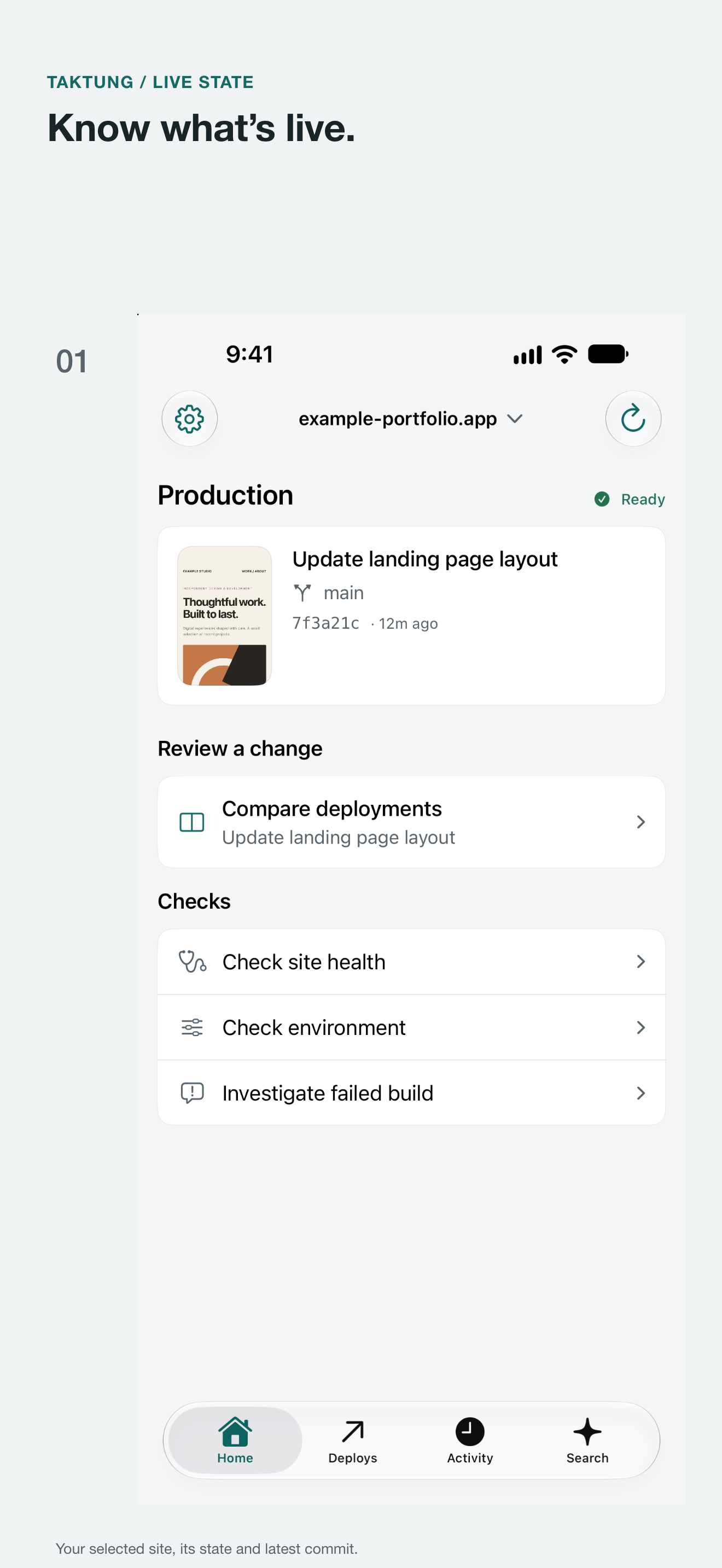
Know what's live.
See the selected site's production state, latest commit and recent deployments.
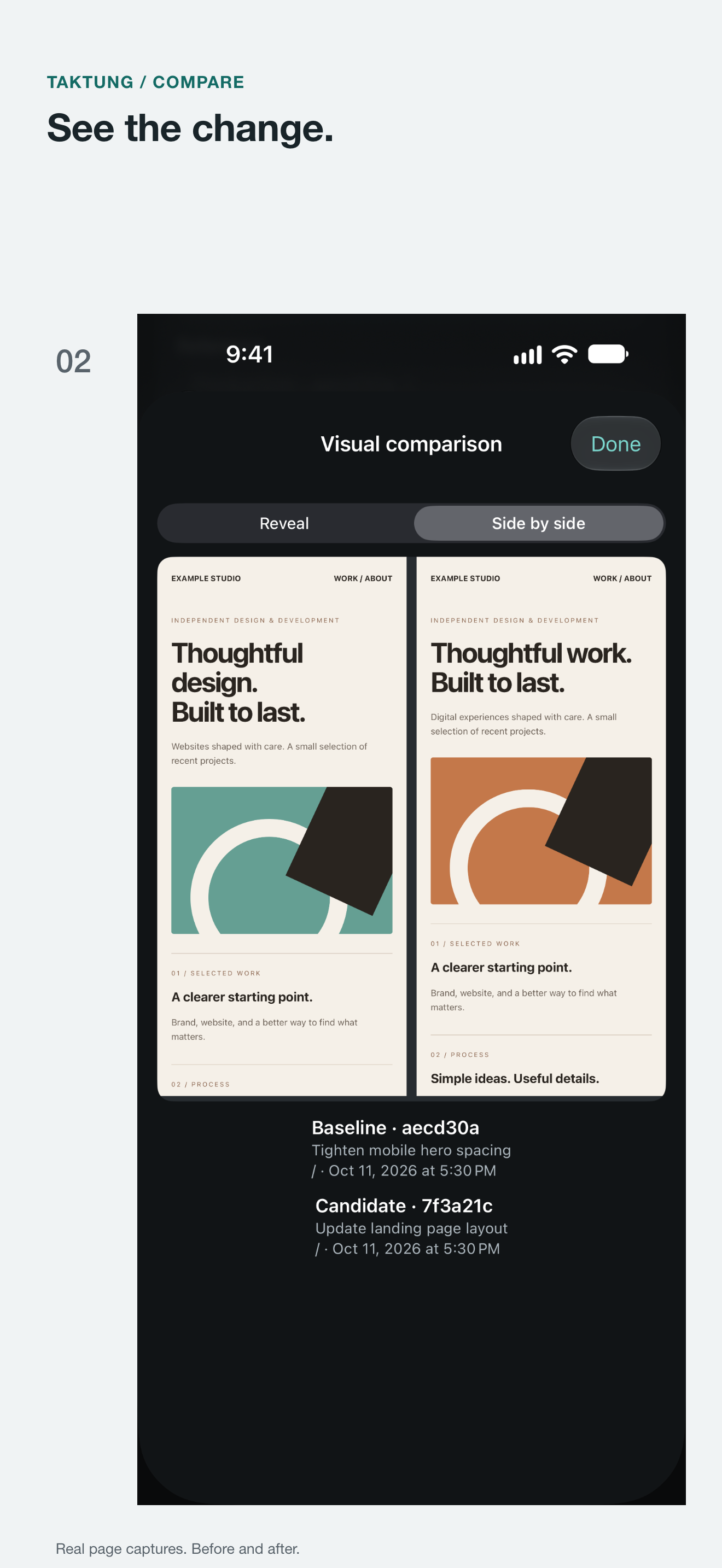
See the change.
Compare real page captures at the same route, then save a baseline for the next deployment.
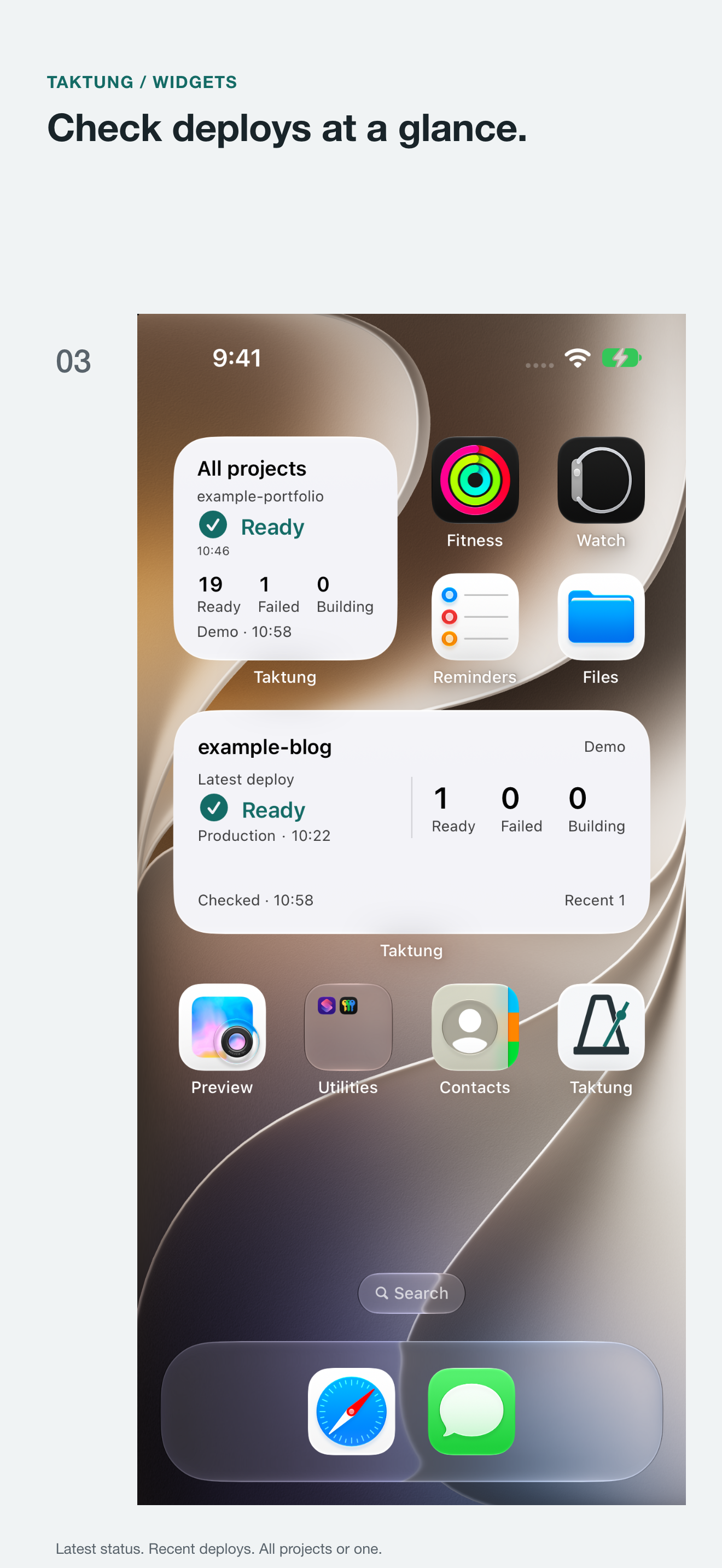
Check at a glance.
Upcoming in 1.5.0: small and medium widgets for all projects or a project you choose.
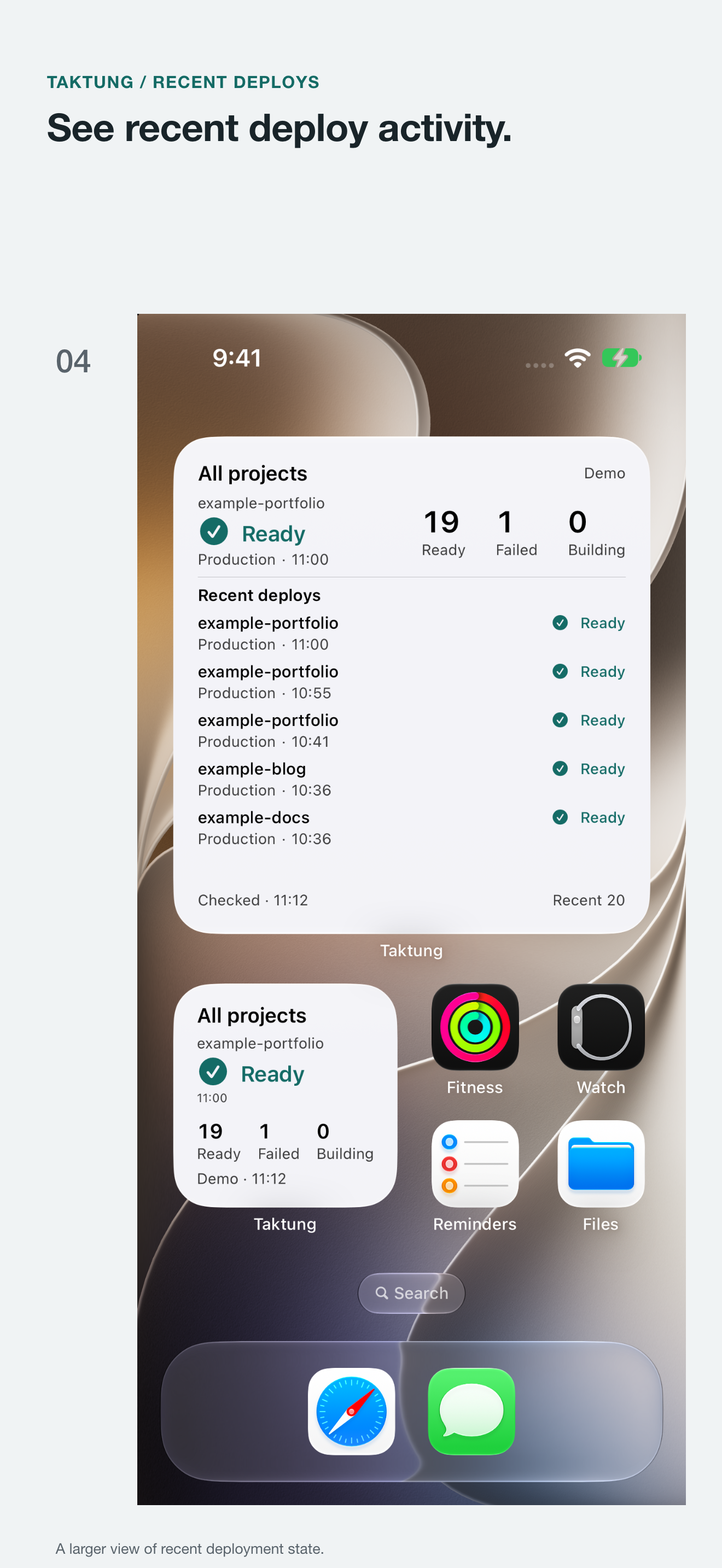
Review recent activity.
Upcoming in 1.5.0: a large widget with recent deployment records and their current state.
Keep a record of your inspections.
The local Field Log keeps checks, comparisons and personal notes together. Search by site, open the evidence behind an entry, or export it as text. History and saved baselines stay on this device, separated by account and team.
Redeploy, promote and rollback stay behind an explicit confirmation. Taktung records READY only after Vercel confirms it.
Connect your first site.
- Create a Vercel personal access token. Use an account with access to the projects you want to inspect.
- Open Taktung Settings and paste the token. It stays in the device Keychain.
- Choose your workspace and site. The selected site stays visible in the header.
- Open a deployment to inspect its logs or compare a READY deployment with an earlier version.
In the upcoming widget update, long-press a widget and choose Edit Widget → Project. All projects is the default; each widget can select a different project.
Useful details.
How do I connect my Vercel projects?
Create a Vercel personal access token, then paste it in Taktung Settings. Choose your workspace and site. The token stays in the device Keychain; requests go directly to Vercel.
Can I compare how a deployment looks?
Open a READY deployment and choose Compare. Taktung captures the same page path in both deployments for a reveal slider or side-by-side review. Save a local baseline for future comparisons. Pages behind deployment protection may not be capturable.
What do the upcoming widgets show?
Version 1.5.0 adds small, medium and large Home Screen widgets with the newest deployment and counts from the 20 most recent deploys. The large widget also shows recent deployment activity. Long-press and choose Edit Widget to filter one project, or leave All projects selected.
How often will widgets refresh?
The system schedules widget updates. The freshness label shows when data was checked or when a cached result is being used. Widget refresh timing varies; Taktung does not continuously monitor website uptime.
Do I need Apple Intelligence?
No. Standard diagnosis works on every supported device. When Apple Intelligence is available, supported devices can summarize the loaded site evidence locally. Version 1.5.0 also adds read-only Siri and Shortcuts actions.
Where are my history and captures stored?
The Field Log, notes and saved comparison baselines stay on this device, separated by account and team. Environment variable values are never shown in the UI or included in briefs. Disconnecting erases the account's local evidence.
Will Taktung change a deployment automatically?
No. Redeploy, promote and rollback require you to review and explicitly confirm the action. Taktung polls Vercel before recording READY; promotion and rollback also verify the production target.